Your First Game
Hosting a game from start to first turn.
Before you start#
You need an account and at least one deck in your library. If you're short a deck, the Precons section of the Decks page has every Commander precon ready to copy.
Creating a table#
Open Games from the top nav and click Create Table.
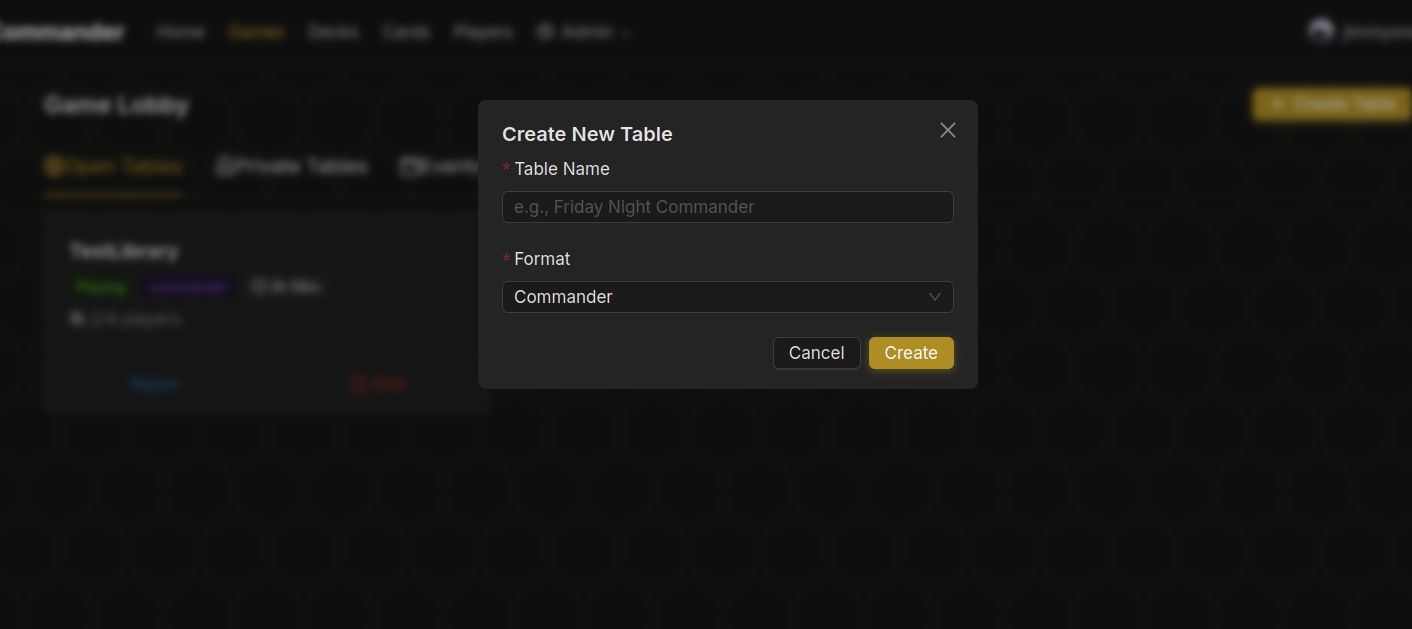
Give it a name and pick a format. Keep the name short; the optional description is the place for house rules or the vibe you're after, and it shows on the lobby card. Everything else has a sensible default, and the form remembers how you set it last time (on this browser), so a regular group only fills in the name. Here's what the options do:
| Option | What it does |
|---|---|
| Visibility | Public tables are listed for anyone. Friends tables show only to your friends. Private tables need the invite code. Playgroup tables are for a group you've set up. |
| Game Mode | Relaxed lets people bring any deck. Strict rejects decks that fail the format's rules. Practice games don't count toward anyone's stats. |
| Table Size | 1v1 or 4 players. 6, 8, 10 and 12 seats are a supporter perk (10 and 12 are in beta). |
| Bracket Range | Commander only. Advertises the power band you want, so people bring the right deck. |
| Deck Price | A dollar range for decks, like $150-$400. Players can't ready up with a deck outside it, give or take 10% because prices move daily. Priced on the cheapest printing of each card. Not offered for draft, Blind or shared-deck formats. |
| Mulligan | London or Vancouver. |
| Match Type | Best of 1 or best of 3. |
| Timeouts | Idle timeout flags anyone who hasn't acted for a while so the others can remove them. Public tables always have one: 3, 5, 10 or 15 minutes, 5 by default; other tables default to 15 and can turn it off or go up to an hour. Mulligan timeout is how long each player gets to keep or mulligan before the game keeps their hand for them. |
| Voice Chat | Off, TC Voice (in the browser), or a Discord voice channel. |
| VC Expected | Either, Required, or No VC. Tells players whether to join with voice chat; the table shows a VC Required or No VC badge in the Games list, which players can filter by. Either shows nothing. |
| Vote to Kick | Lets the other players vote out someone who's gone missing. On by default, and always on for public tables. |
Getting people in#
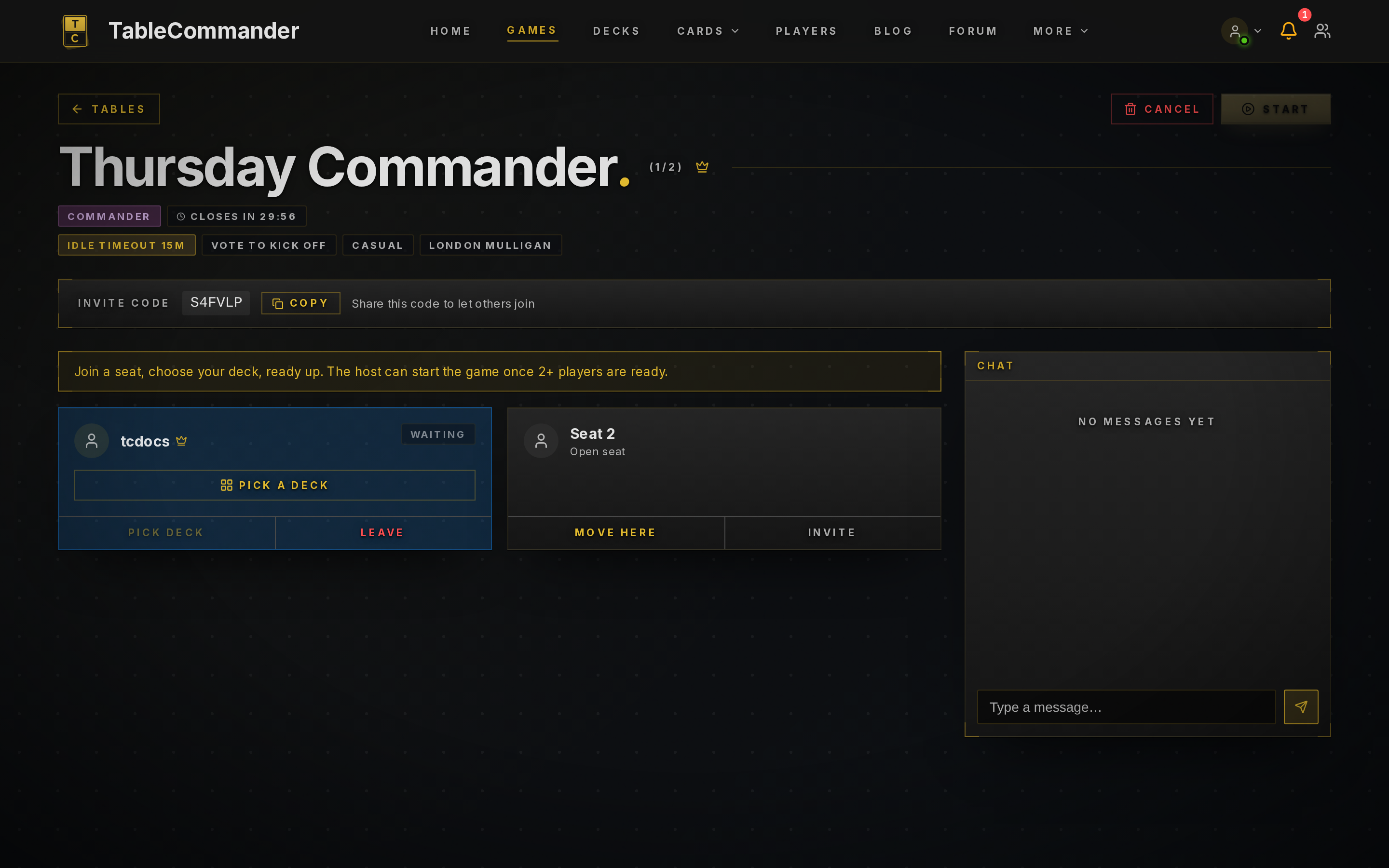
The table page shows a six character Invite Code near the top. Send it to your group. They open Games, click Join by Code, and type it in.
If the table is public it also shows in the lobby list, and anyone can sit down.
Waiting for players#
Each seat shows who's sitting there and whether they've picked a deck. Your own seat opens a deck picker. Your starred favourites sit at the top. Search matches deck and commander names, and a Filters button opens colour, bracket and legality pills, plus format pills when the table takes mixed formats; supporters also get their folder and label pills. The filters stay open while any is active so nothing hides quietly. Random picks from whatever is left after the filters, so one label pill plus Random is a quick way to draw from a playgroup's decks. The lobby chat works before the game starts, which is a good time to agree house rules or confirm power levels. If you wander off to your decks while the table fills, or open the site in another tab mid-game while you wait on someone, the bar along the bottom keeps the table chat one click away, with an unread count on the icon.
As host you can kick anyone from a seat before the game starts, and shuffle the seating order if you want it random.
Picking a deck and readying up#
Each player clicks Pick a Deck on their own seat, chooses from their library, then clicks Ready Up. You can swap decks until you're ready. A deck that fails the format's rules gets a red Illegal pill on its seat, and clicking it shows the reasons, so nobody has to take anyone's word for it. The host's Start button lights up once at least two people are seated and everyone is ready.
Dandân is the exception: both players share one deck, so either player can change it from their seat. It starts on the standard list. Changing it unreadies both players and tells everyone who switched it and to what.
Starting#
Host clicks Start. Decks are shuffled and everyone gets an opening hand.
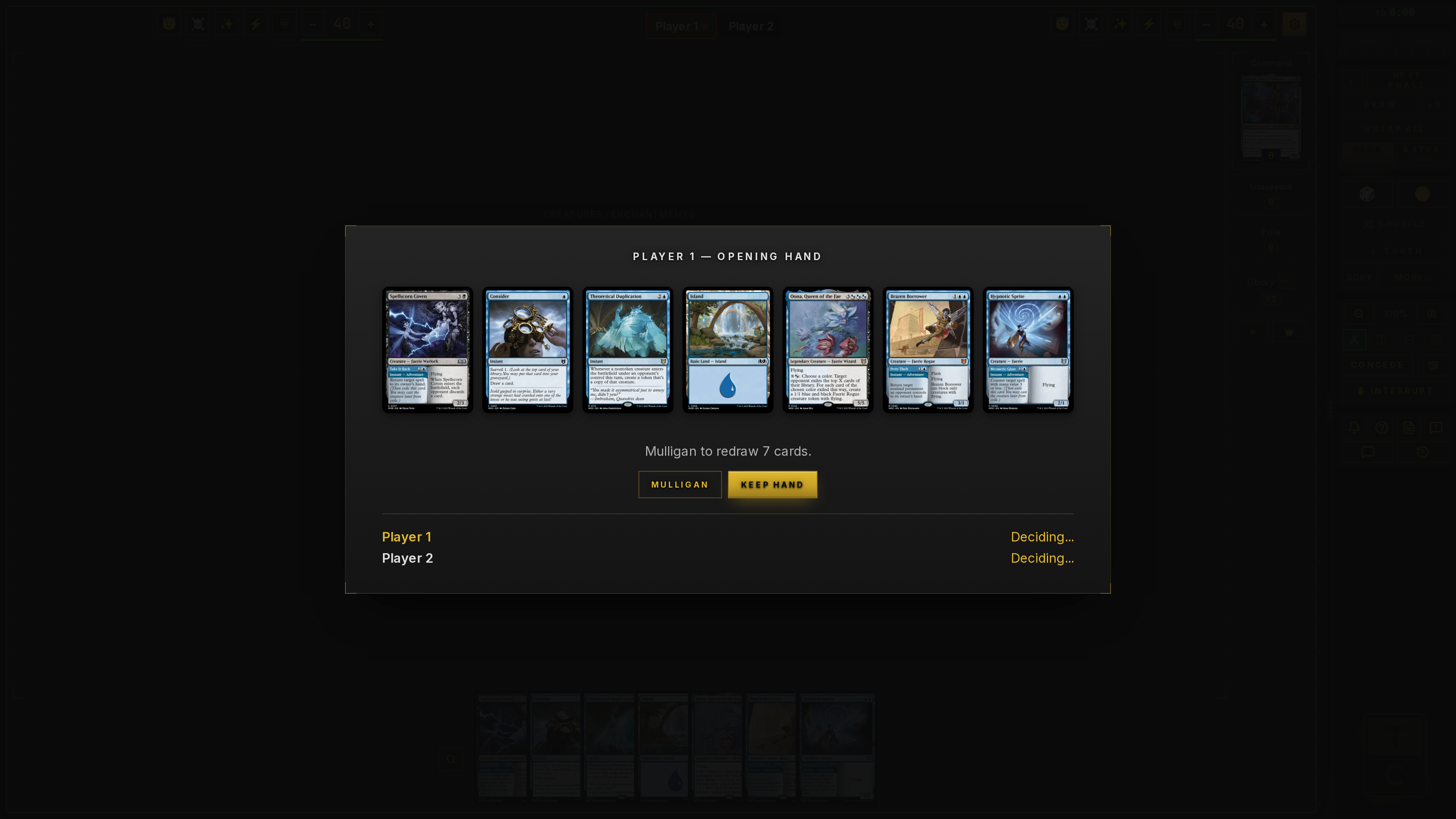
Before the first turn there's a short mulligan window. Everyone's commanders show above your hand so you know what you're keeping against. Keep Hand or Mulligan as you would at a real table. With London mulligans you'll be asked which cards to put on the bottom. There's a timer on this so one person stepping away doesn't hold the table up, and the window counts it down. If it runs out, your current hand is kept for you.
During the game#
Head to Game Controls for moving cards, tapping, life totals and the rest.