The Playmat
What you're looking at once a game starts.
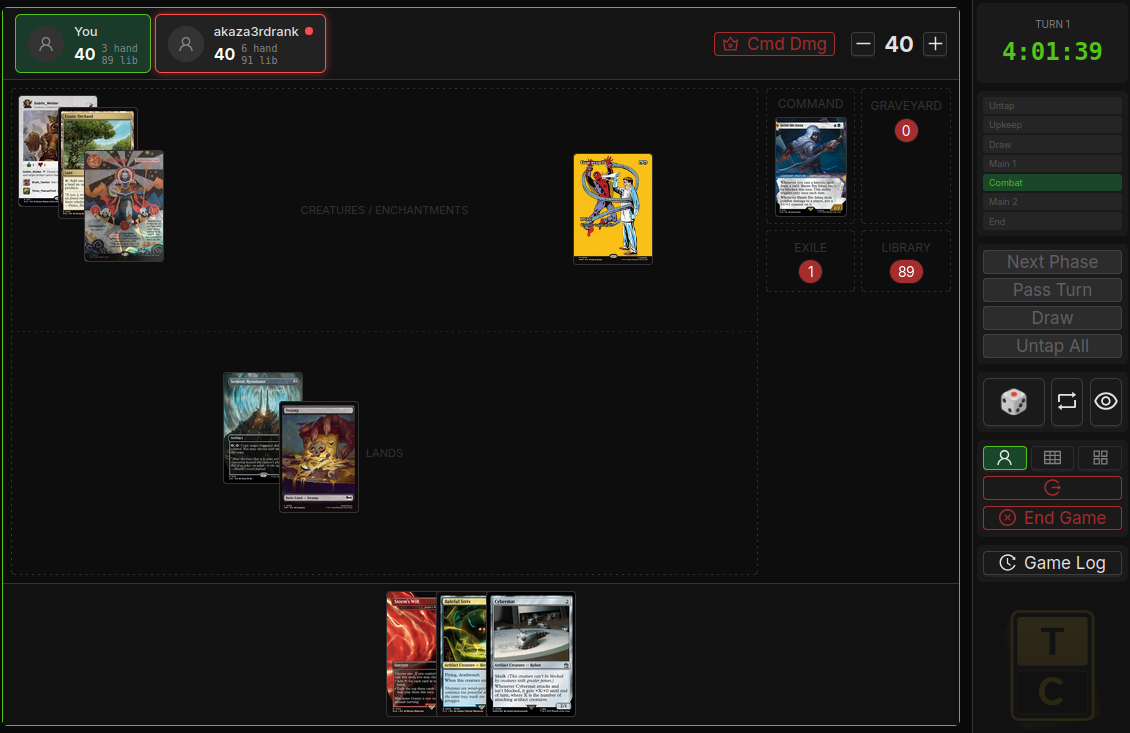
The layout#
Across the top, every player has a stat row: life, poison, energy, experience, commander damage and whatever other trackers you've turned on. The player tabs in the middle switch whose board you're looking at. Top right is the turn clock and the phase strip.
The big area is the battlefield. Yours is split into two bands, Creatures / Enchantments above and Lands below. The bar between them drags to resize, and the labels can be hidden in settings if you'd rather have the space.
To the right of the battlefield is a column of your zones: Command, Graveyard, Exile and Library, each with a count. Under the library sit the Day/Night and Monarch buttons. The in-game cog can also add Dungeons and Initiative buttons and a reverse turn order button for cards like Aeon Engine; reversing it tells the whole table in the log and shows a Rev chip beside the turn number.
Your hand runs along the bottom. Hover a card to see it large. Drag it onto the battlefield to play it. Drag the top edge of the hand to make it taller or shorter, and the cards grow and shrink with it. Once you have sized it, the hand keeps that size whatever the card zoom is set to. Drag it all the way down and it folds into the compact hand, a bar you click to pop the cards up. Drag that bar up to get the full hand back. Double-click the edge to reset the size. The float button under the search button, or dragging the grip in the hand's top-left corner, takes the hand off the bottom into its own window you can move and resize. Drop it back on the bottom edge to dock it again. Only the hand docks to the bottom.
The right edge is the sidebar: turn controls, draw, shuffle, tokens, scry, dice, concede and the log. Game Controls goes through every button.
View modes#
The view buttons at the top of the cog (or keys 1 to 4) change how opponents are shown:
| Key | View | What you get |
|---|---|---|
1 |
Single | One board at a time. Click a player tab or press Tab to cycle. |
2 |
Side-by-side | Your board next to one opponent's. |
3 |
Stacked | Opponents' boards stacked above yours. |
4 |
Quadrant | Everyone at once. Needs enough players to fill it. |
Once a player is out of the game, their board stays put so you can still count what they left behind. When you are done with it, click the eye button on their player tab (Hide board in Quadrant) to drop it from view. The other boards close up, so a four player Quadrant with one player out becomes two over one. In Quadrant a small hidden chip in the top left corner brings them back, and in the other views their tab stays, dimmed, with the same button to show them again. Tab skips hidden players. Hiding only changes your screen, and your own board can't be hidden.
The panels docked down the sides lean in towards the board. Press 6, or the tilt button on any docked panel, to lay them flat or lean them again.
There's no camera to rotate or pan. Zoom is the −/+ control at the top of the cog (or [ and ]), and it scales the cards, not the page.
Placing cards#
Cards go wherever you drop them and they'll happily overlap. Right-click a card for Bring to Front or Send to Back when a pile gets messy, or hover it and press PgUp or PgDn. Right-click empty battlefield for three layout helpers:
- Auto-arrange tidies your permanents into rows.
- Snap to Grid makes drops line up.
- Zone Labels shows or hides the band labels.
Tokens of the same kind stack. A stack shows a count badge, and its menu lets you tap the lot, split it, or remove some.
Reading a card's state#
- Tapped cards are turned sideways.
- Face-down cards show the card back. Only you can see what it is.
- Counters appear as badges on the card. +1/+1 counters also update the P/T badge.
- Attached Auras and Equipment sit with the card they're on and move with it when you drag it. Attach and detach through the card menu, not by dragging.
- Pinned cards go to a tray so they don't get lost on a busy board.
Selection and highlighting#
A green outline means you're hovering the card and hotkeys will hit it. Blue means it's selected. Red means someone other than its owner controls it. A gold pulse points out a card you've just jumped to from its attachment badge, and any other colour is a card group ring. Ctrl or Shift plus click adds to a selection, or drag a box around several cards. Escape clears it. With two or more creatures selected, a readout in the top-right corner of your playmat totals their power, counters and modifiers included, so you can size up an attack without adding it in your head.
One click on a card opens the card view with full oracle text. A double-click taps or untaps it.
Your zones#
- Library. Click to open the library viewer. The ⋯ menu has two reveal modes: Show top to me for Realmwalker effects and Reveal top to all for Courser effects.
- Graveyard and Exile. Click to browse. Cards can be dragged straight out. Opponents can ask to look at yours and you approve or decline.
- Command zone. Commanders start here and come back here. The tax counter lives on the zone.
Settings#
The cog at the top right opens the game settings, in five tabs: Board, Cards, Trackers, Turn and Sounds. Board background and opacity, compact hand, P/T and loyalty badges, the card back, the floating mana column, which trackers appear in your stat row, turn alerts, chat notifications (a browser notification when someone chats while the tab is in the background, off by default), auto untap and auto draw all live there. Everything is per player and remembered between games, including which tab you were on.
Board mat
Under Board background the Mat picker chooses what shows through the seats. Site background is whatever you set under Appearance. Felt is a cloth table for anyone, with the TableCommander mark woven through it, in green, wine, navy or slate. Your image (this device) is a supporter perk: pick a picture from your device and it becomes your mat, with the opacity slider controlling how much of it shows. The image stays in your browser. It is never uploaded and no other player sees it, so it is yours alone and only applies on this device.
Under Cards, Card back picks the emblem on face-down cards: Planeswalker spark (the default, chosen by a forum vote), Mana pentagon, Runic ring, d20, or Plain for no emblem at all. Sleeve colour below it puts a solid colour behind the emblem, from the swatches or any hex from the last dot. Both are your view on this device. Other players see their own picks.
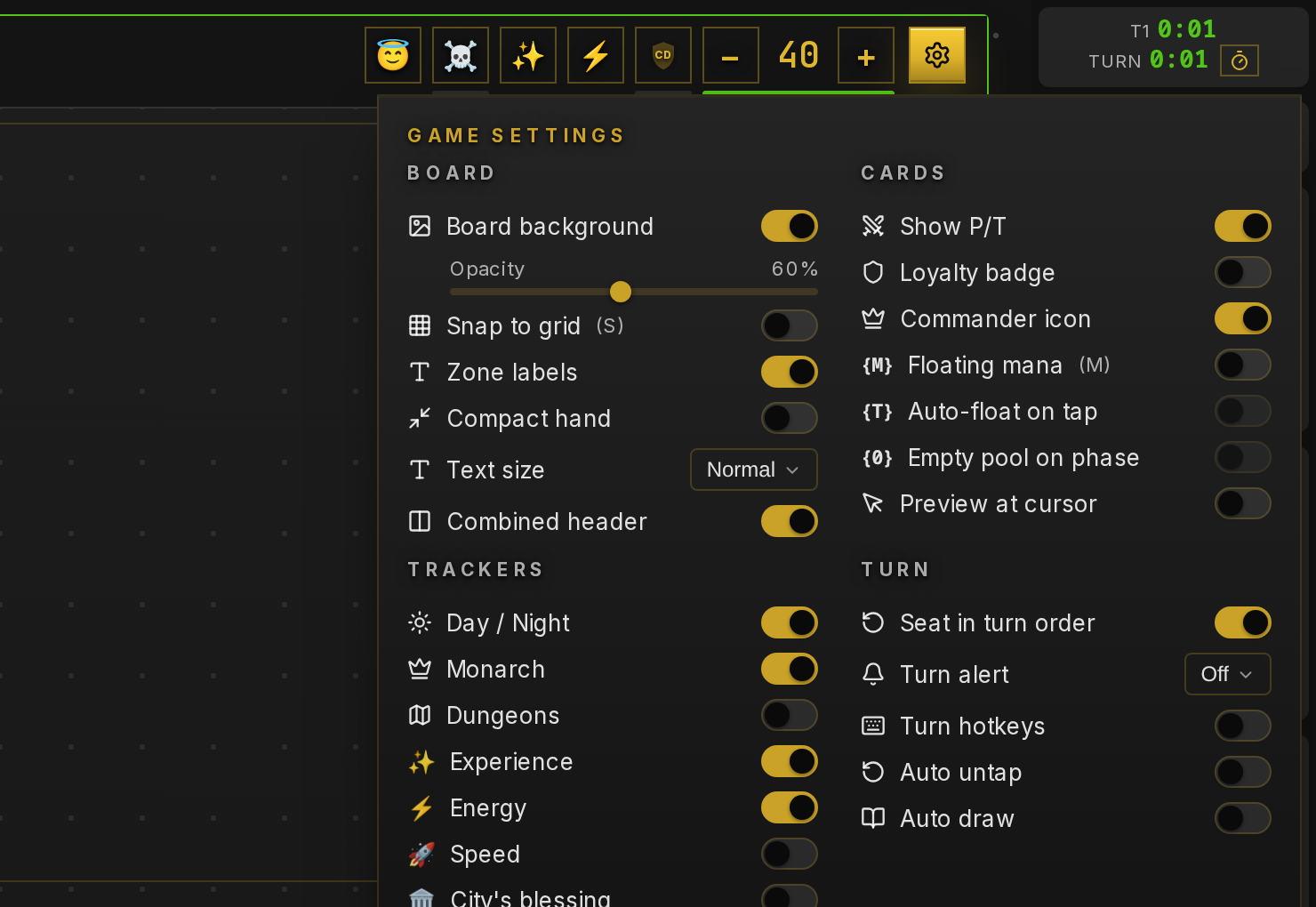
Game bar (testing)
A new layout we're trying out, off by default. Turn on Game bar (testing) under Board and every seat's tab, your life and counters and the cog move into one bar across the top of the screen. The tabs in the bar show each player's name and life. Click one to bring up that board. Every board, yours included, has a slim nameplate with the player's counters and badges, and your own counters can also be changed from your stat row on the bar. Drag the bar's grip to move it: drop it on the top or bottom edge, into the left or right column with chat and the log, or anywhere else to float it. Turn the switch off to go back. Tell us what you think on the forum before we decide whether it becomes the default.